

WELCOME TO THE VIRTUAL STUDIO
Prepare for our upcoming virtual event on StreamYard with this handy guide.
PREPARE
- BROWSER/STREAMING
- The best streaming experience will be on a laptop or desktop
- MUST USE Chrome for Android/PCs or Firefox/Edge/Opera for iOS/Macsto access StreamYard on the browser
- If you must use your cell phone – please hold it vertical for the best image
- CONNECTION
- Try to have the strongest signal possible – disconnect other devices from your wifi/router
- If possible, connect directly via ethernet
- If you must use a cell phone, you will have to use it in portrait format & you will not be able to use the Private Chat function
- Please mute yourself when you are not talking – otherwise I will do it if there is any sort of audio interference/echoes
- POWER
- For the best video quality, have your device fully charged and if it’s a laptop plug it in!
- Please mute yourself when you are not talking – otherwise I will do it if there is any sort of audio interference/echoes
SET-UP

LIGHT
Set-up in a well lit area and turn off any light sources positioned behind you

SOUND
For the best audio experience, wear earbuds & please mute yourself when you’re not speaking

CAMERA
Your camera should be positioned at eye level and you sitting about 2 feet away
GOING LIVE
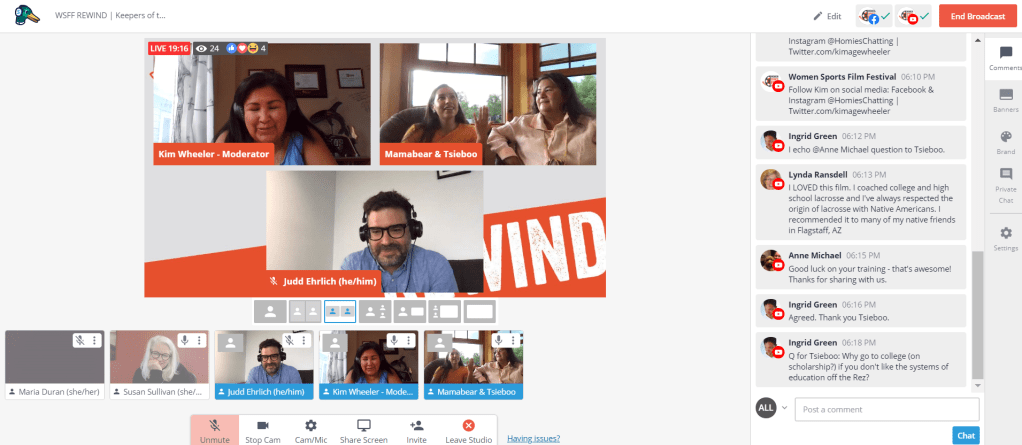
- ENTERING THE VIRTUAL STUDIO
- Click on the StreamYard link we send you
- When prompted give access to your mic & camera
- Enter your display name which will be visible to everyone
- ONCE INSIDE THE VIRTUAL STUDIO
- You’re immediately placed into the “green room” –
- Only the technical director can see you & bring you on screen
- TIMELINE
- 20 mins prior to start time the technical director will bring all participants on-screen for a production meeting to review the agenda
- 5 mins prior to start time everyone will be sent to the green room & put on standby as we prepare & countdown to go LIVE
- TOOLS
- Private Chat – This function is for everyone in the Virtual Studio to communicate before and during the broadcast
- Live Comments – You are able to see and comment on the chats of the social platforms we’re broadcasting on.
Did you enjoy your experience on the StreamYard Virtual Studio? Open your own account using our referral link!
.
.
 Duran Concepts